Inutile donc de vous dire que si votre SCCM n’est pas accessible sur le web ce qui serait tout à fait normal, vous aurez besoin de votre propre agent azure devops.
Today small post about installation of Sharepoint 2016 Preview. More post coming about that, testing, comparing…Of course this is an preview but we can discover some new features 🙂
To start here is my virtual machine configuration:
Windows Server 2012 R2 with update x64
SQL Server 2014 ent x64
SharePoint 2016 Preview
You can download SharePoint 2016 Preview from this link: https://www.microsoft.com/en-us/download/details.aspx?id=48712
Edit: Sharepoint 2016 RC is available for now, so you can follow same procedure by downloading this new release. See post about « SharePoint 2016 RC is available »
Licence key: NQTMW-K63MQ-39G6H-B2CH9-FRDWJ
First configuration
Your machine need to be installed with Windows Server 2012 R2 and you have to activate « Active directory domain services » feature via server manager -> Add role
After that, you have to create service accounts for Sharepoint, SQL and give needed authorizations to your accounts on SQL Databases (DB_owner, DB_securityadmin).
SharePoint 2016 Preview Installation
To start, we need to install prerequisites for SharePoint, of course you will need to restart your machine one of 2 times during this operation. So be patient 🙂
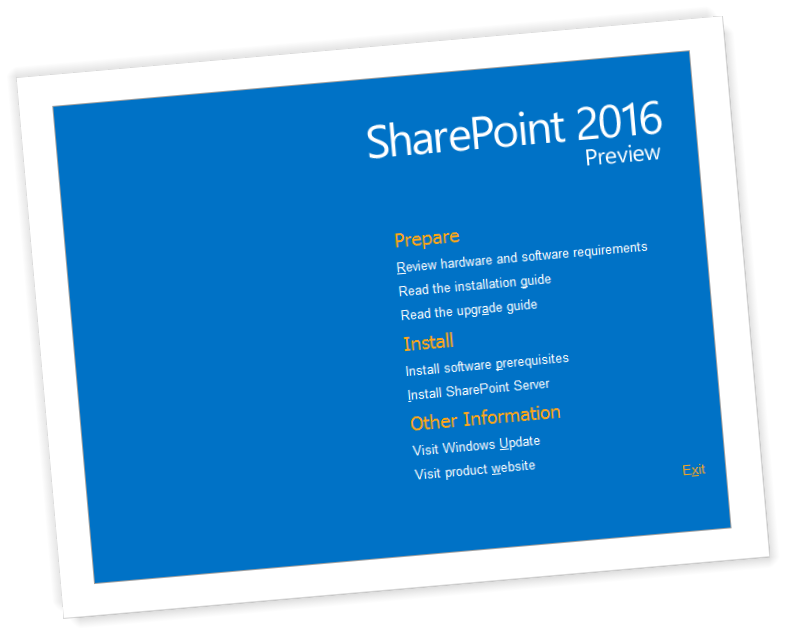
Click on « install software prerequisites »
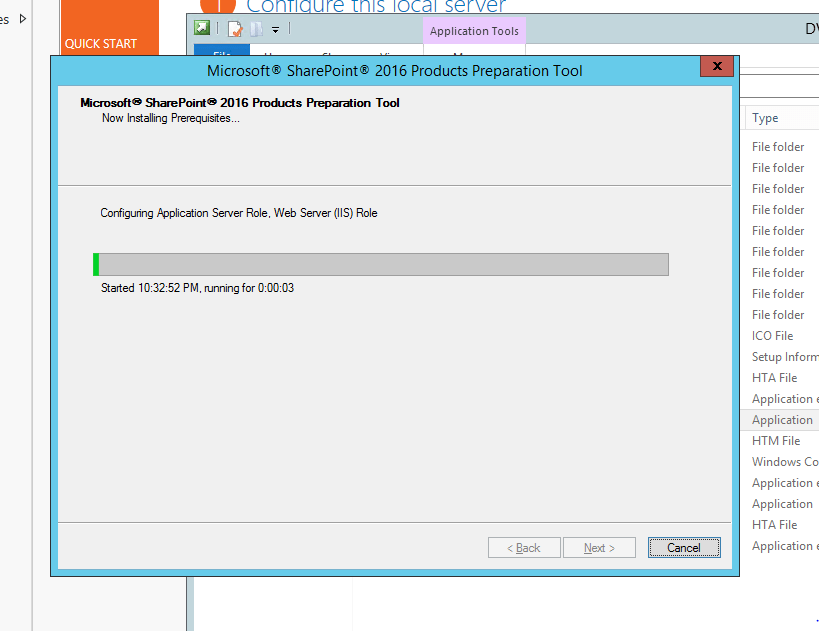
Installation screen display all required software to be installed, no surprise for the moment,
Click on continue and be patient. during this process; server can restart one or two times.
When install finished, we got list of installed components.Just check if there is no error on any components.
As SharePoint 2013, launch SharePoint 20166 install
You know, you need to be patient for that 😉 take cup of coffee 🙂
When installation has been finish, you just have to open SharePoint wizard like previous version to create a farm.
As you can see on the picture below, something changed contrary to previous version. We cannot install SharePoint in Standalone mode. It mean, SharePoint install do not have embedded SQL installation anymore, so you have to complete installation of sql server edition before.
For the rest, it’s the same as previous version of SharePoint.Simple…
Ok now we are ready, we got all Sharepoint stuff. Let’s go to have look on SharePoint Central Administration
On SharePoint Centrale Administration, top bar changed and look like office 365 now but for the rest it look like the same.
I created team site, the design and feature look like the same.
For the moment installation process is finished and this is the end of blog post. i will write post more specifically for new features, new components integrated in SharePoint 2016 later.
Have nice discover of this new release and have nice SharePoiting 🙂
Nous utilisons les cookies afin d'améliorer votre expérience de navigation.
Functional
Toujours activé
Le stockage ou l’accès technique est strictement nécessaire dans la finalité d’intérêt légitime de permettre l’utilisation d’un service spécifique explicitement demandé par l’abonné ou l’utilisateur, ou dans le seul but d’effectuer la transmission d’une communication sur un réseau de communications électroniques.
Préférences
Le stockage ou l’accès technique est nécessaire dans la finalité d’intérêt légitime de stocker des préférences qui ne sont pas demandées par l’abonné ou l’utilisateur.
Statistiques
Le stockage ou l’accès technique qui est utilisé exclusivement à des fins statistiques.Le stockage ou l’accès technique qui est utilisé exclusivement dans des finalités statistiques anonymes. En l’absence d’une assignation à comparaître, d’une conformité volontaire de la part de votre fournisseur d’accès à internet ou d’enregistrements supplémentaires provenant d’une tierce partie, les informations stockées ou extraites à cette seule fin ne peuvent généralement pas être utilisées pour vous identifier.
Marketing
Le stockage ou l’accès technique est nécessaire pour créer des profils d’utilisateurs afin d’envoyer des publicités, ou pour suivre l’utilisateur sur un site web ou sur plusieurs sites web ayant des finalités marketing similaires.
![[EN]Happy New Year!](http://roncasalotti.files.wordpress.com/2014/01/happy-new-year-2014.jpg "[EN]Happy New Year!")